Using AUTON
How AUTON Works
Last updated 2026-11-19
AUTON is one place for an FRC team’s meetings, hours, projects, scouting and chat. This is how a team goes from nothing to its first competition day, with screens from AUTON’s demo team.
1. A school adult sets up the team
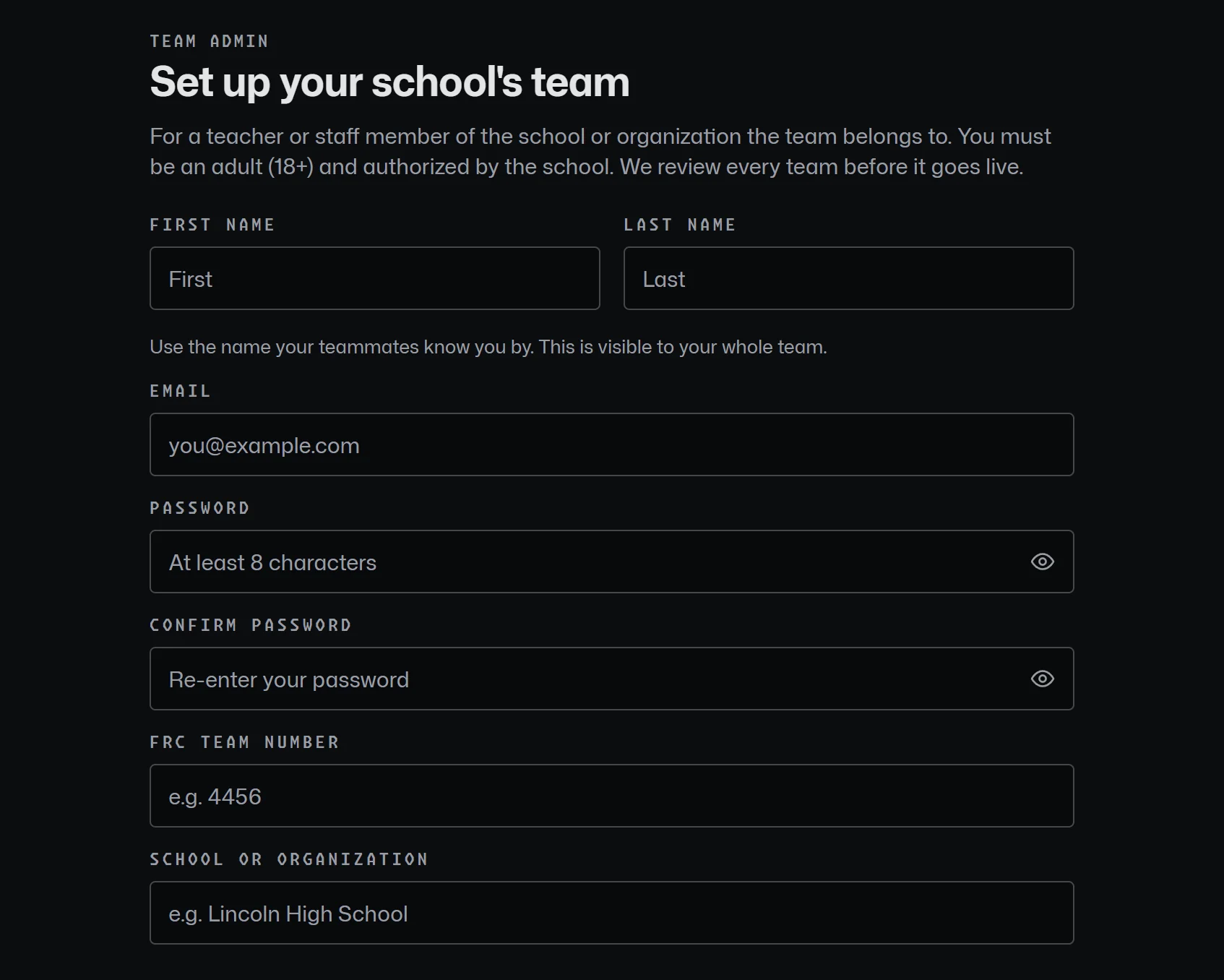
Every team starts with a teacher or staff member of its school or organization. They open app.autonfrc.com, choose Team admin, and fill in the claim: their name and email, the FRC team number, the school and their role there, a link that shows them with the school or team (a staff page, a team page or the team’s social account) and a short note for the reviewer. They confirm they are an adult authorized by the school, and that the school’s administration knows the team uses AUTON.
AUTON emails a 6-digit code to confirm the address. Then a person at AUTON reviews the claim. Once it is approved, the team admin gets an email, signs in, and the team is open.
2. Mentors and students join with codes
The Roster page holds two codes: the student code and the mentor code. Students sign up as a student with the student code and confirm they are 13 or older; they are on the team as soon as they confirm their email with the 6-digit code. Mentors sign up with the mentor code, confirm they are 18 or older, and wait for the team admin to approve them. Nobody can join a team without its code, and nobody can make themselves a mentor.
3. Schedule the first meeting
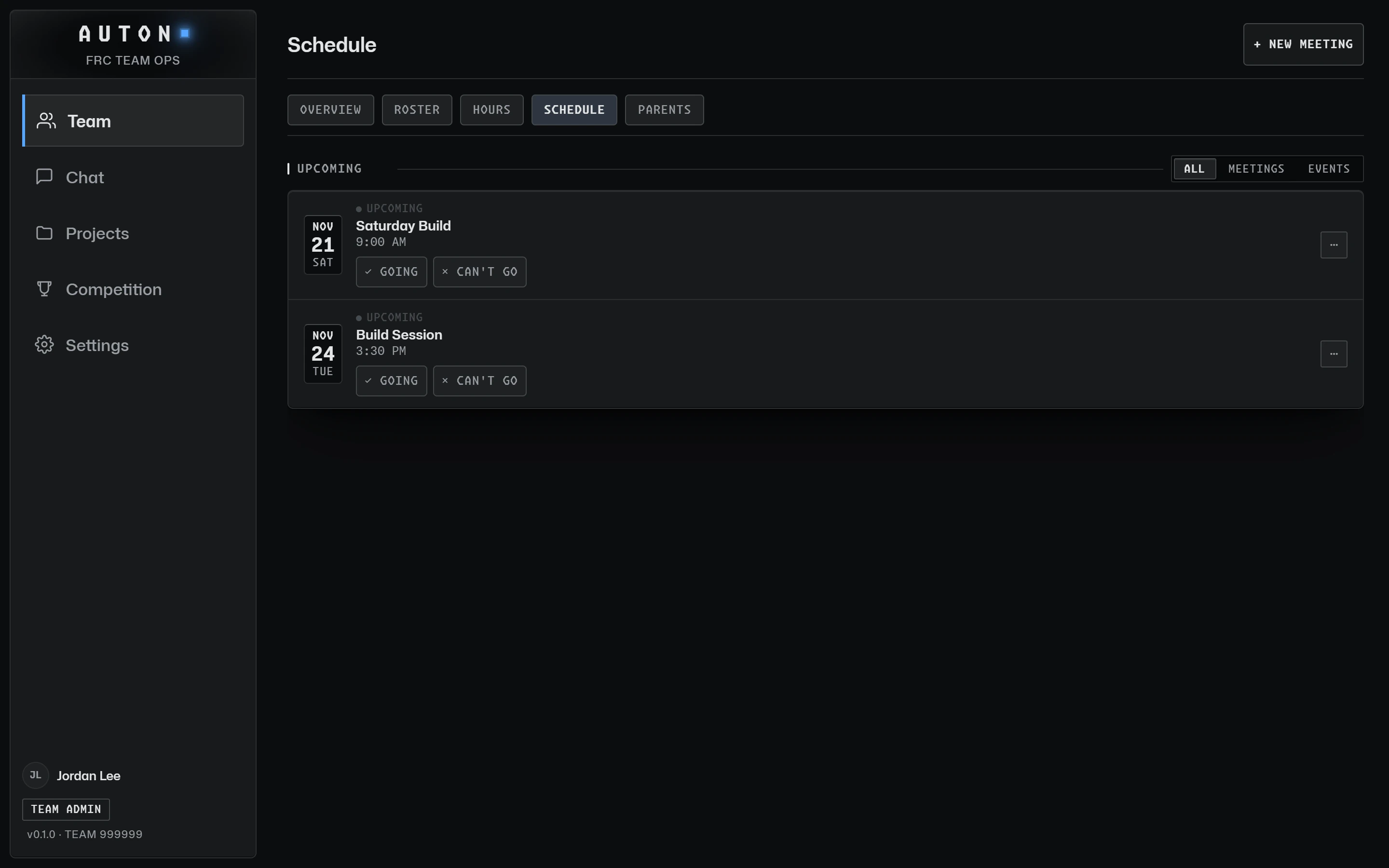
Mentors (and student leads given the Schedule permission) add meetings on the Schedule page, one at a time or weekly. Members RSVP, and the season’s competitions from The Blue Alliance appear in the same list.
4. Students sign in, and hours add themselves up
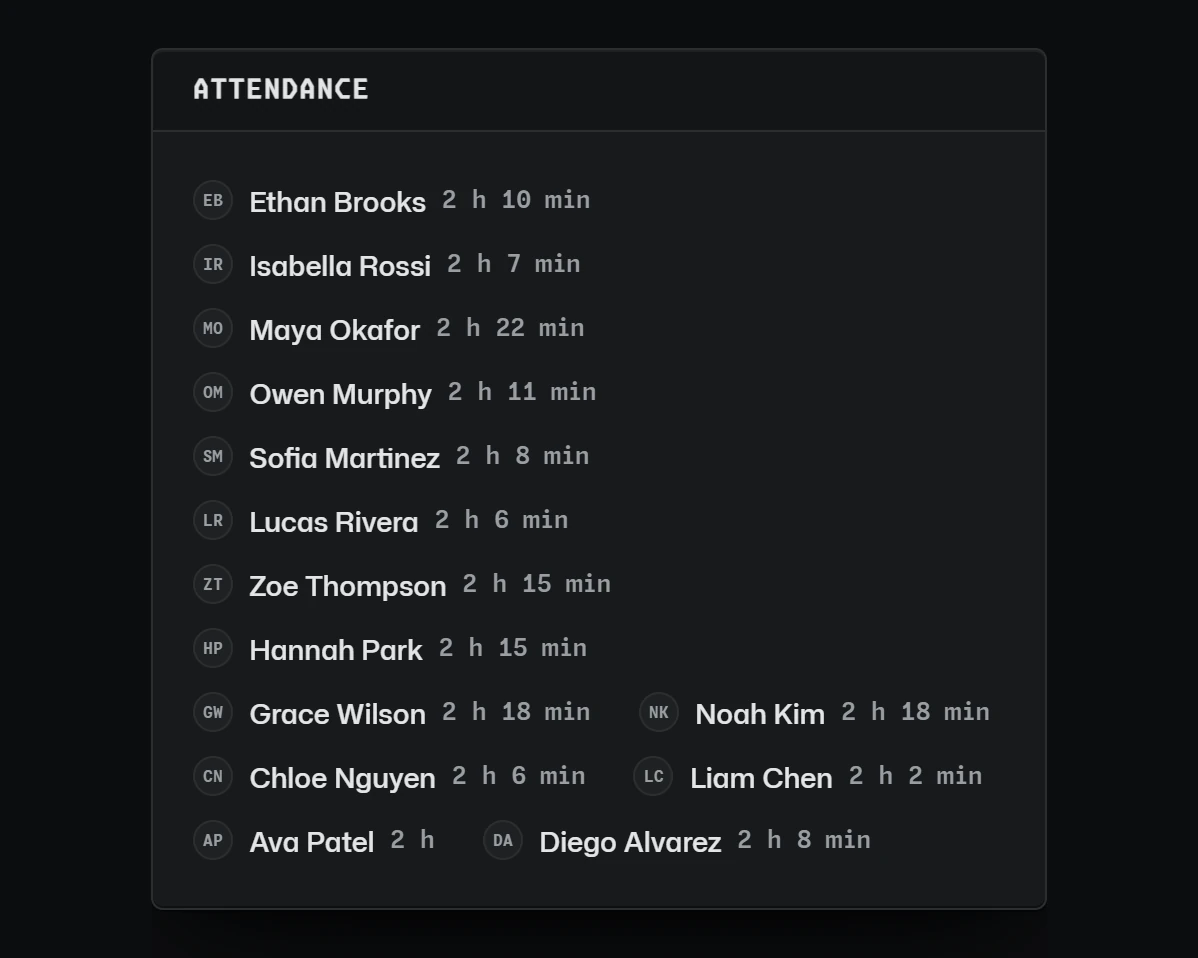
At the meeting, students sign in on their own phone with the code shown in the room, or at a shared sign-in kiosk where they find their name and tap Sign In. Hours are worked out from those sign-in and sign-out times, never typed in. When the meeting ends, anyone still signed in is signed out at the end time, and a student who forgot can ask a mentor to correct it.
5. Plan the build in projects
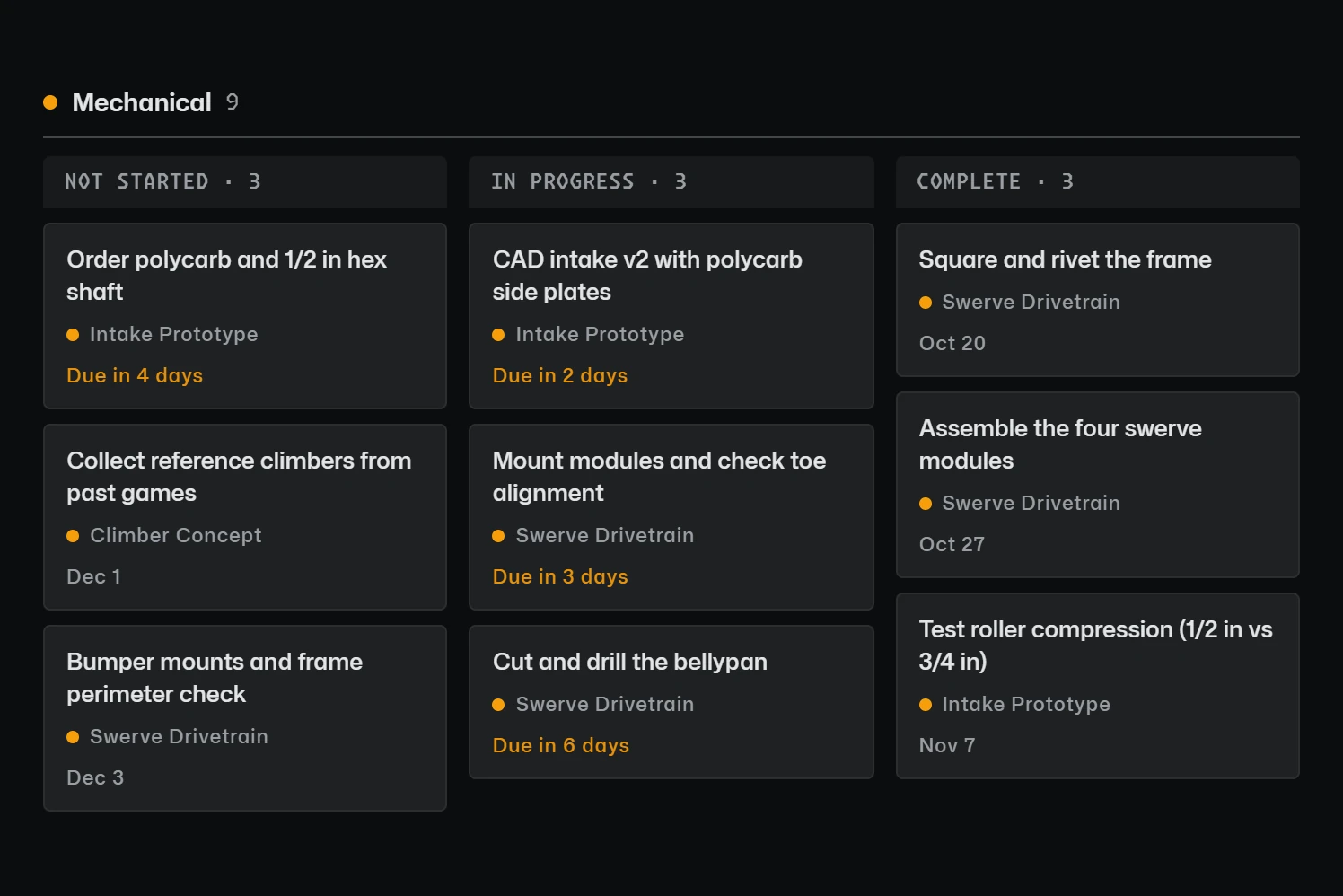
Sub-teams (Mechanical, Programming, Electrical and your own) hold projects, and projects hold tasks with due dates and people. The task board and timeline show the season at a glance, and the build log keeps photos and notes from every meeting, visible only to the team.
6. Scout at competitions
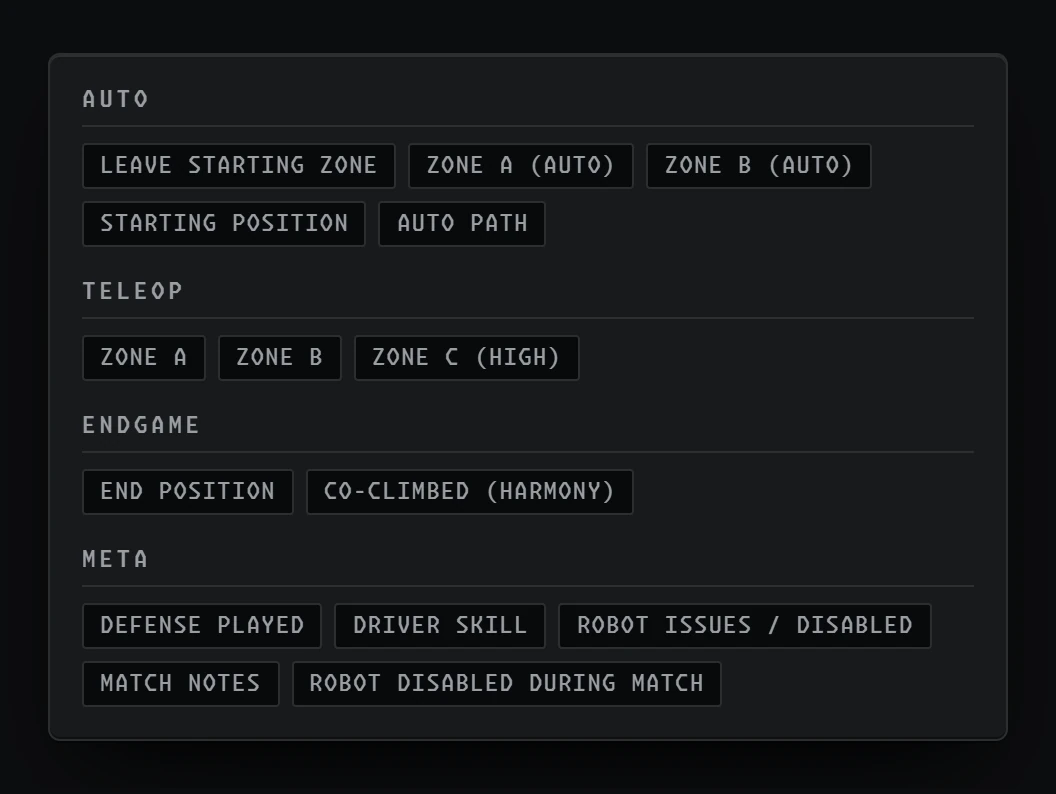
Scouts fill in the season’s form on their phones, from assignments that spread matches across the team. Every entry lands in one Scouting Data table, and the pick board ranks teams with your own averages next to public statistics.
7. Run Match Day with a plan
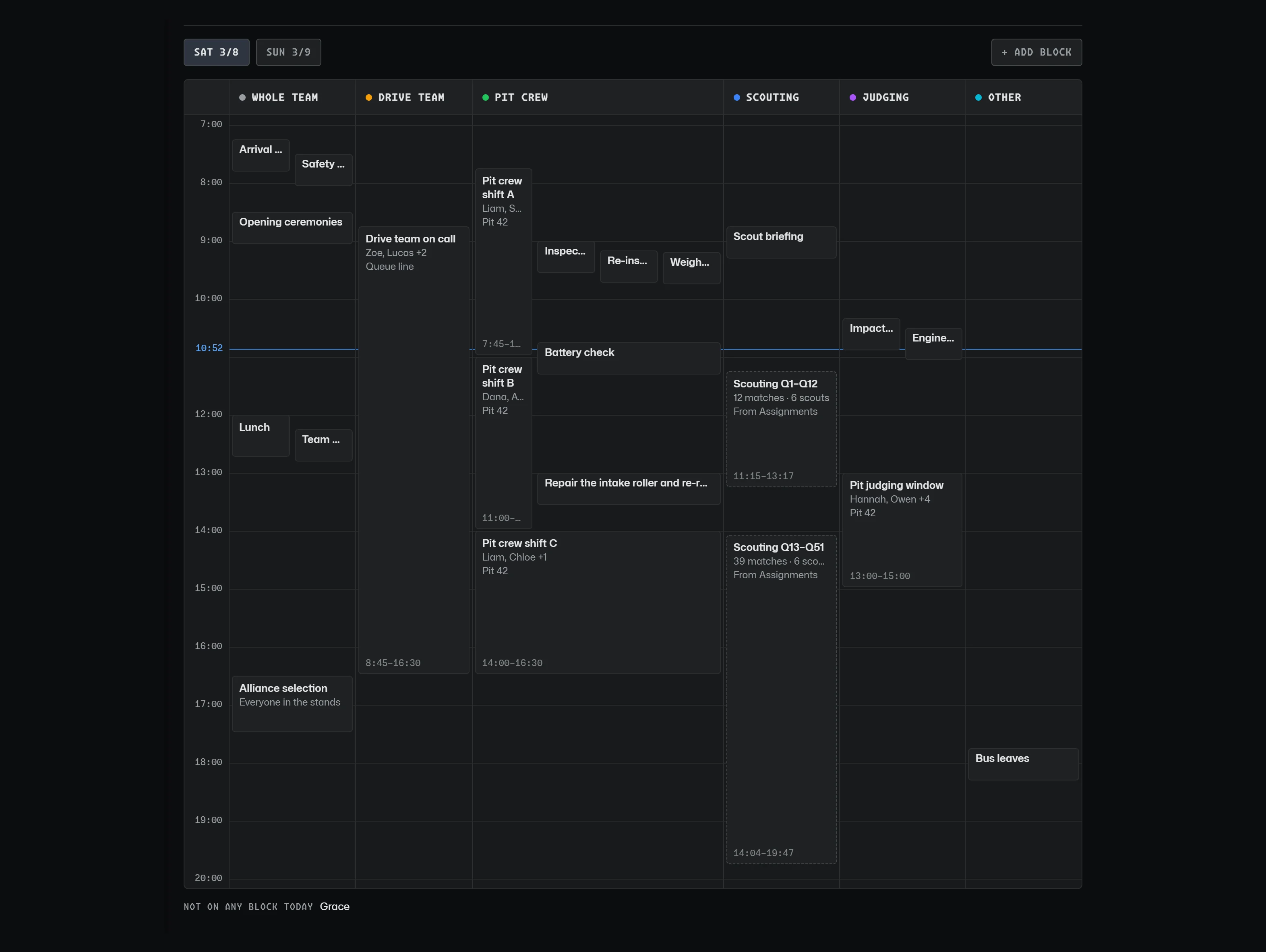
For each competition day, mentors build a Day Plan in blocks: arrival, pit crew shifts, judging interviews, lunch and alliance selection, with the people on each. Your matches and the scouting assignments appear beside the blocks without being typed in twice.
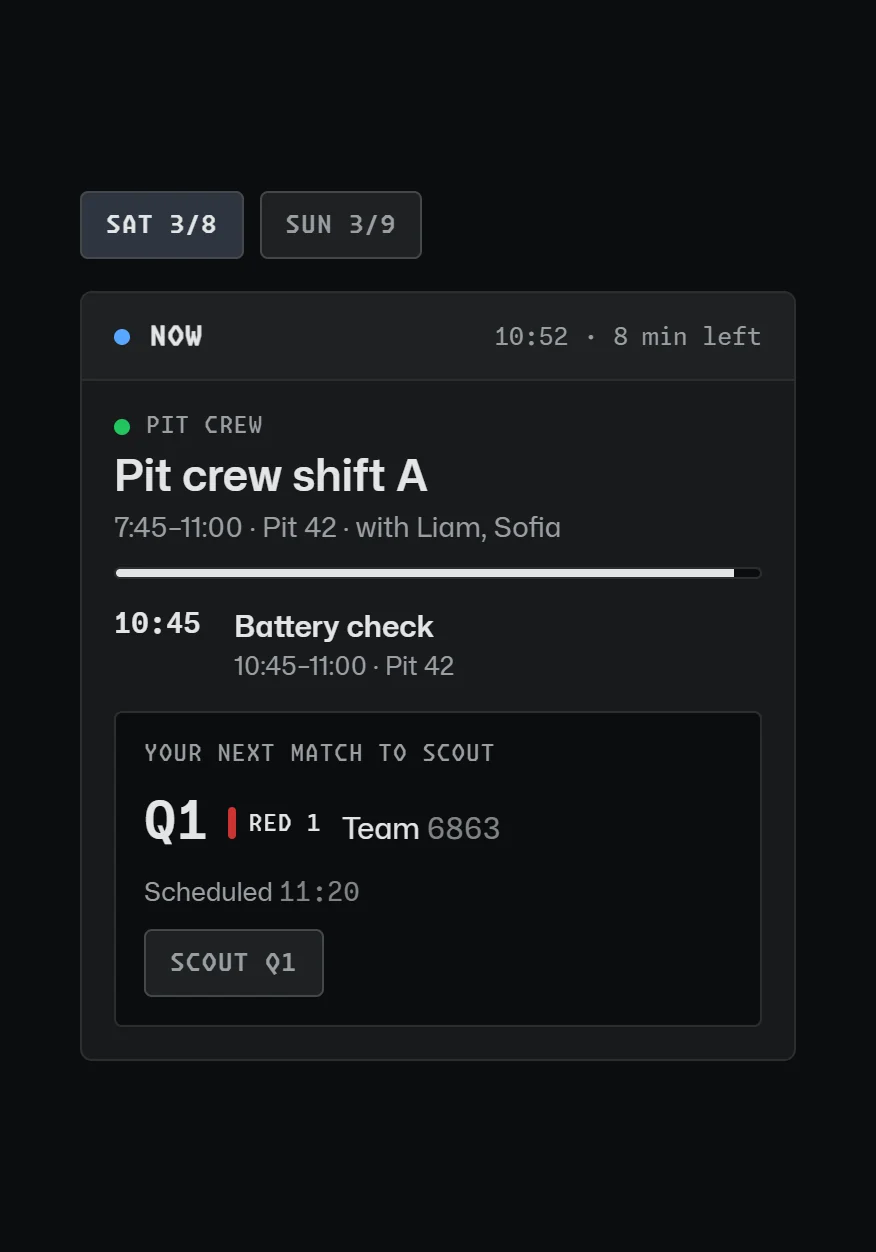
Every member then has My Schedule on their phone: what they are doing now, what is next, and their next match to scout with a button that opens the form.
8. Talk in team channels, and keep parents informed
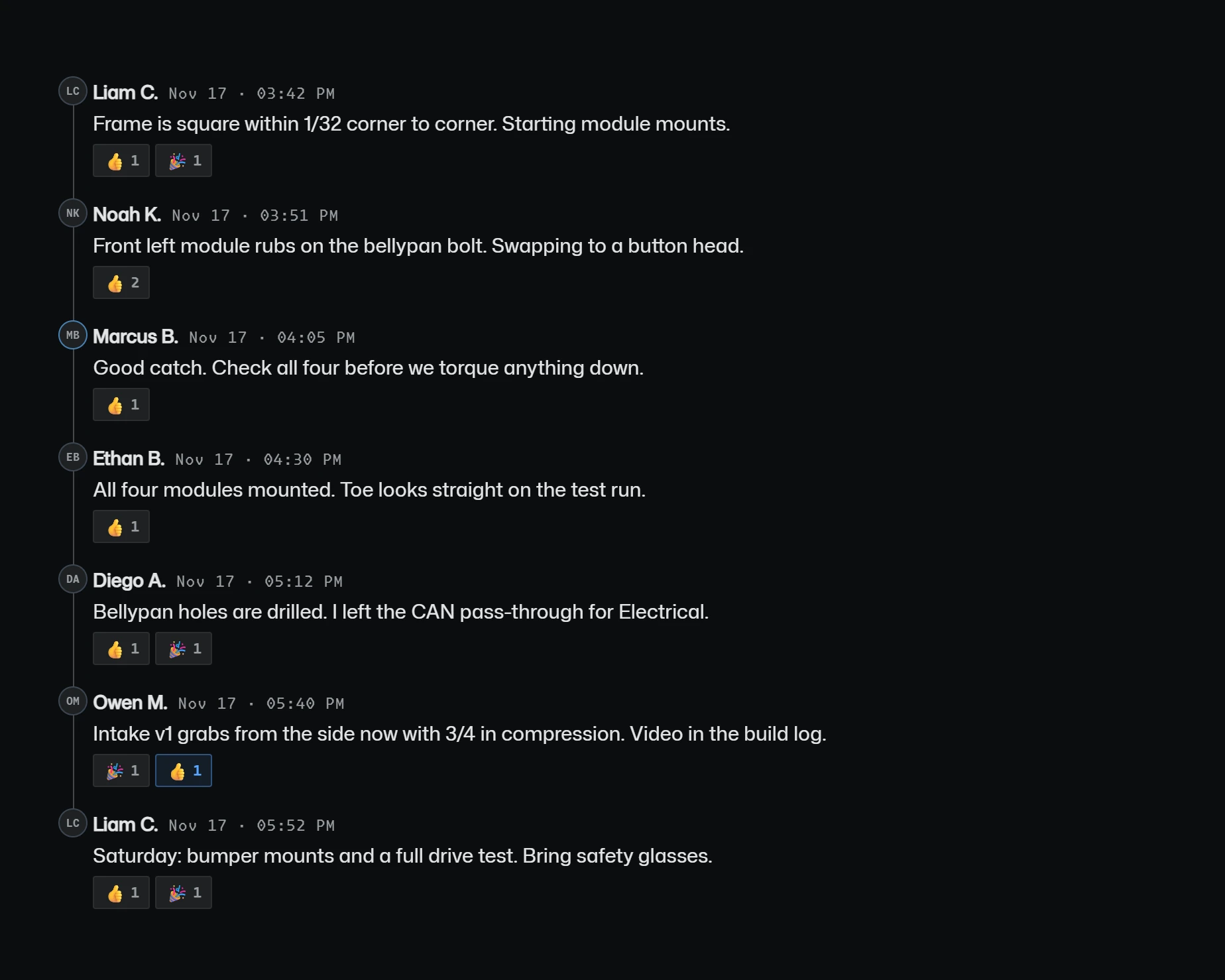
Chat happens in team channels where mentors are present; there are no one-to-one messages between adults and students. Announcements reach the whole team, and mentors can email parents, who can unsubscribe in one click.
Where to go next
Read the guide for your role: team admins, mentors or students, or click through the demo.